> ## Documentation Index
> Fetch the complete documentation index at: https://lexi-doc.devoscape.com/llms.txt
> Use this file to discover all available pages before exploring further.
# Add & train knowledge.
## Adding Knowledge
You can add your custom knowledge to the chatbot for more personalized and accurate resolutions.
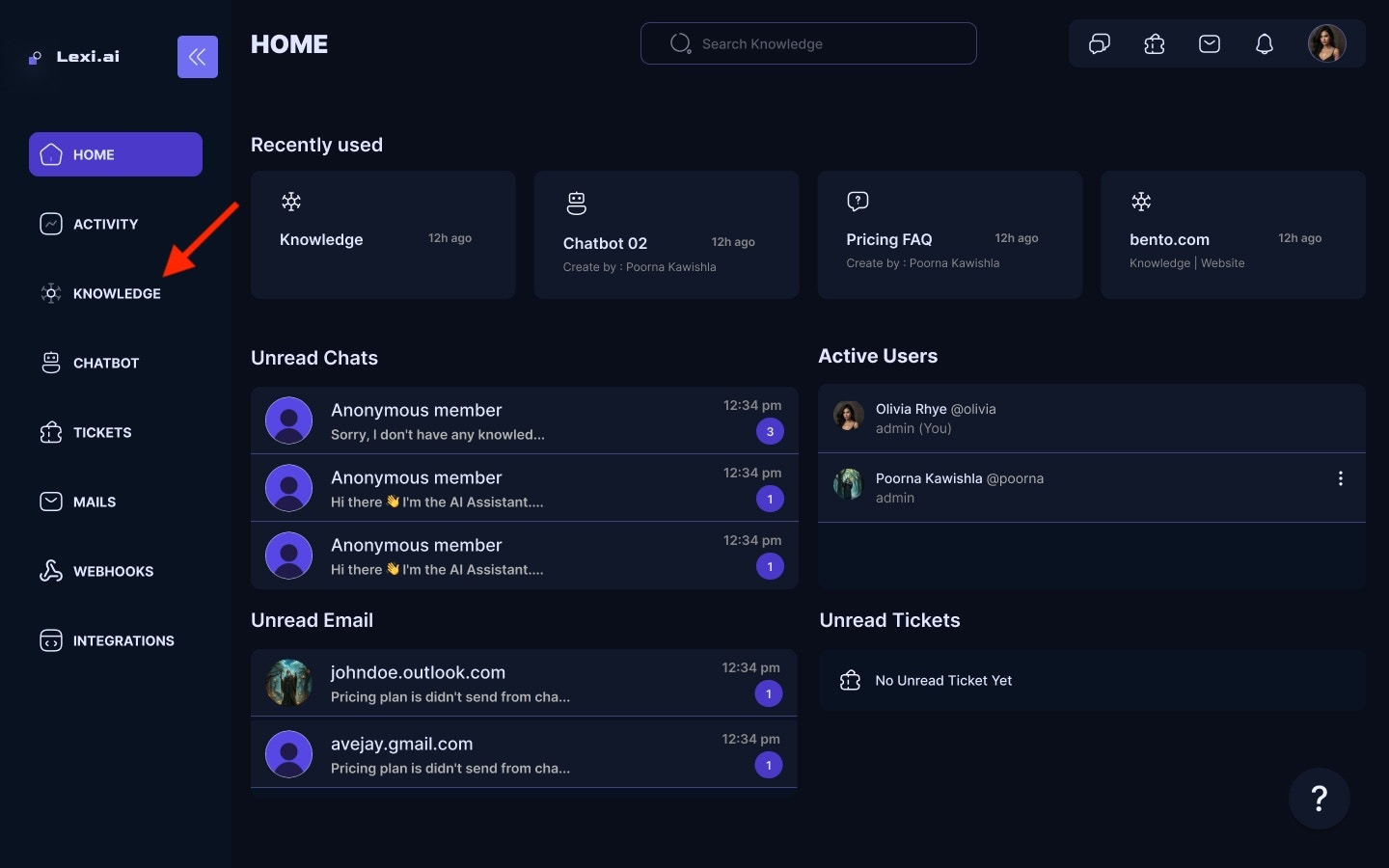
* On your LEXI Home screen, Navigate to **Sources** under the **Knowledge Base** section.
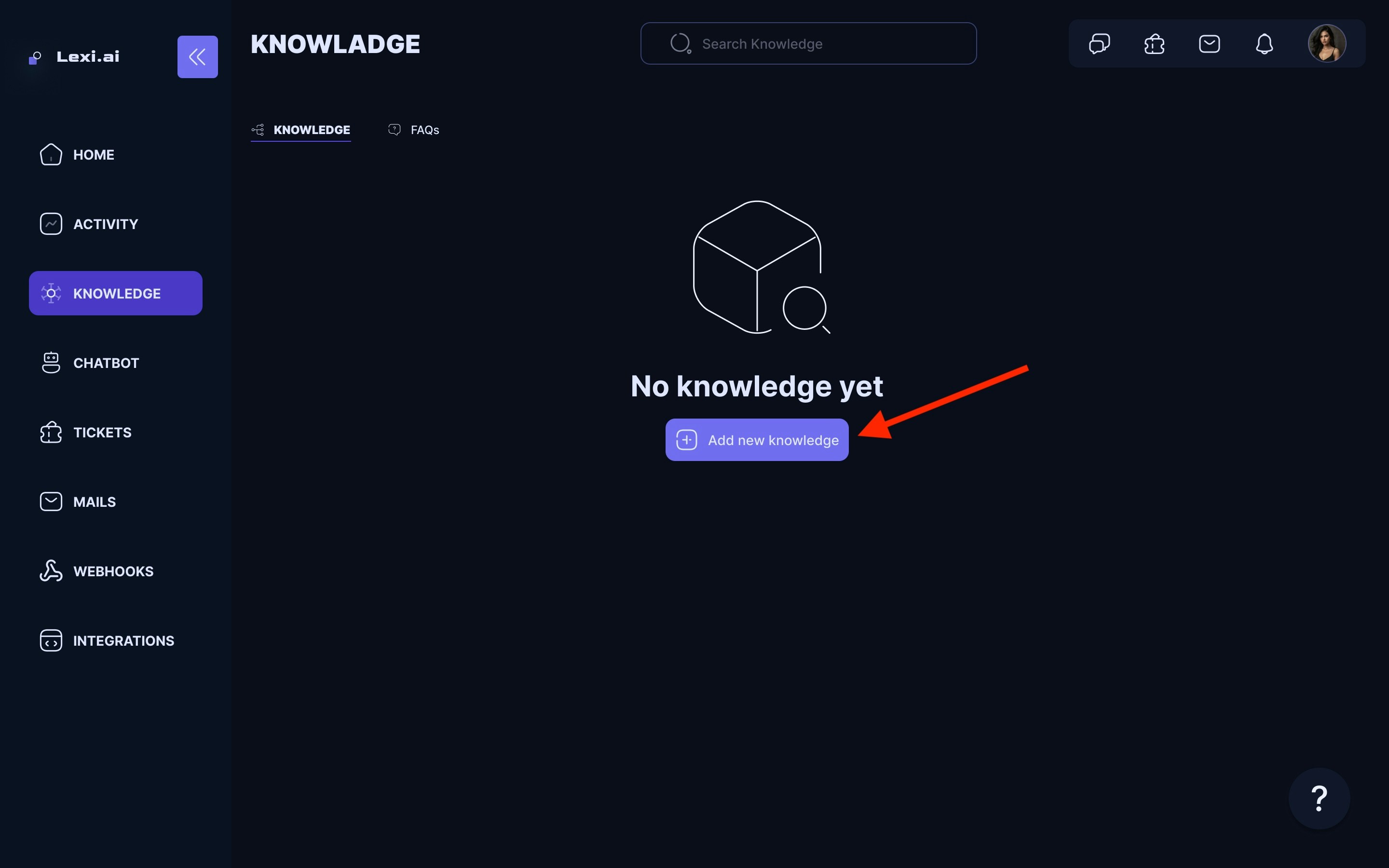
 * You can add your knowledge files by clicking the **Add a new knowledge**.
 * Choose your Knowledge source type from the dropdown list. You can choose from the following options:
* **Website**: You can share the link to your website or guide page. LEXI AI will extract the information from the web link provided and train the chatbot for future use..
* **Document**: You can upload documents in any format. LEXI AI will extract text from them and add them to its knowledge base..
* Choose your Knowledge source type from the dropdown list. You can choose from the following options:
* **Website**: You can share the link to your website or guide page. LEXI AI will extract the information from the web link provided and train the chatbot for future use..
* **Document**: You can upload documents in any format. LEXI AI will extract text from them and add them to its knowledge base..
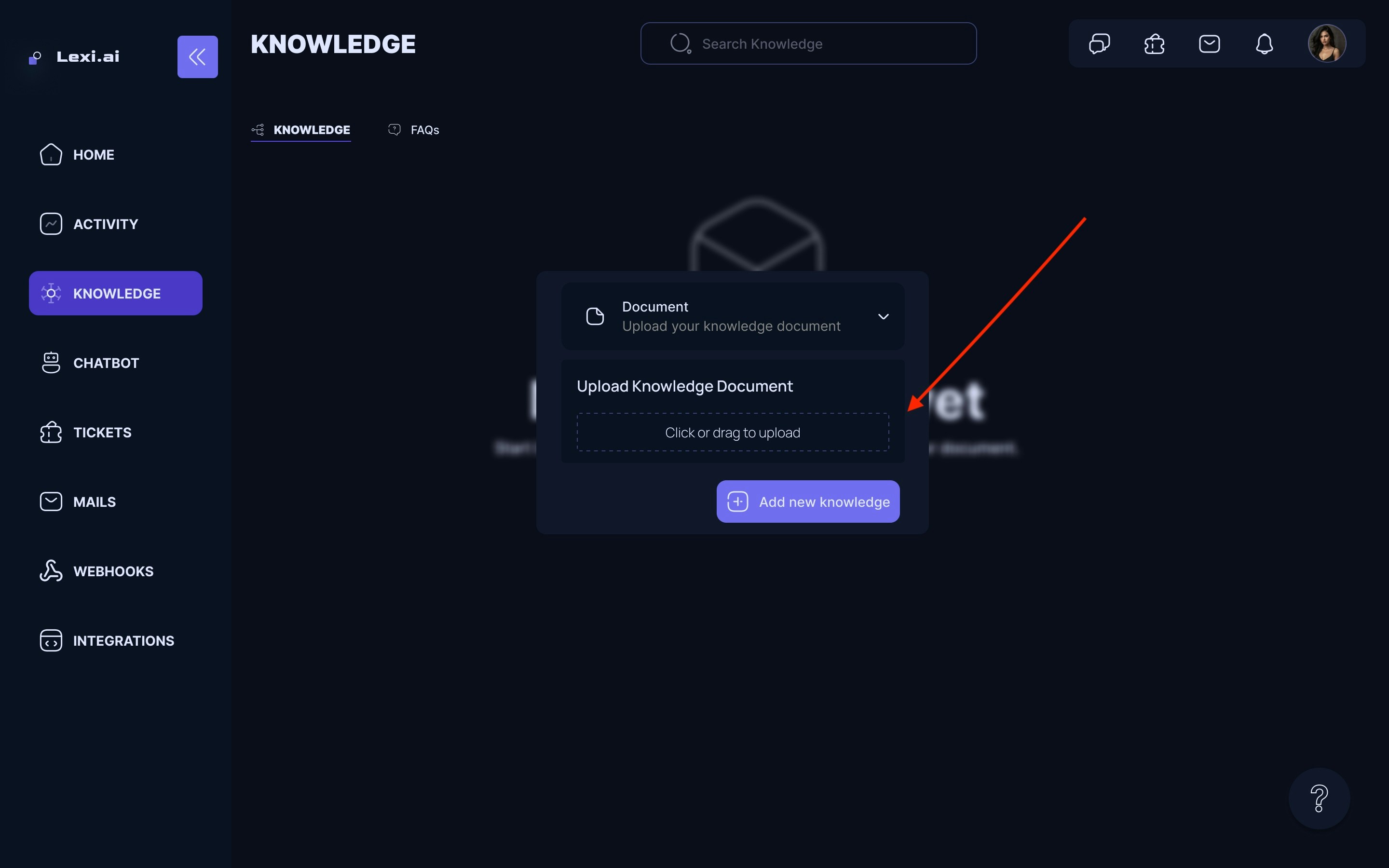 * Add the knowledge; here, we are choosing PDF files as the knowledge type.
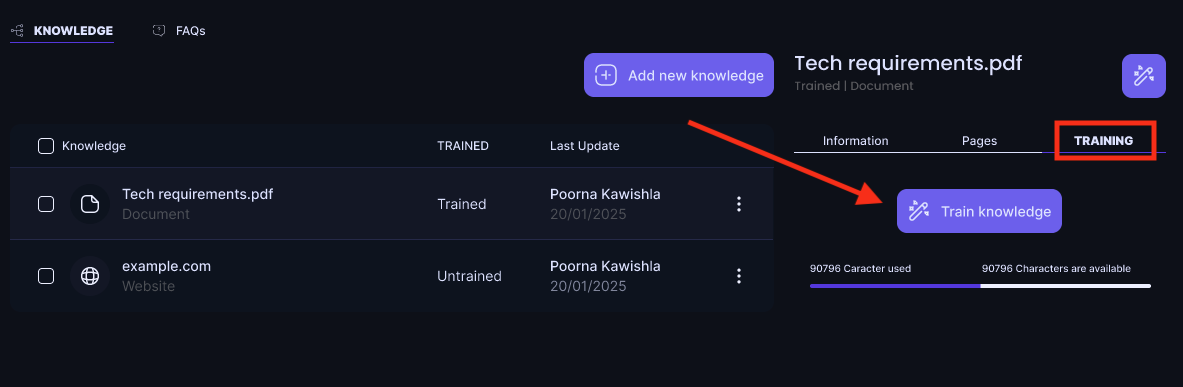
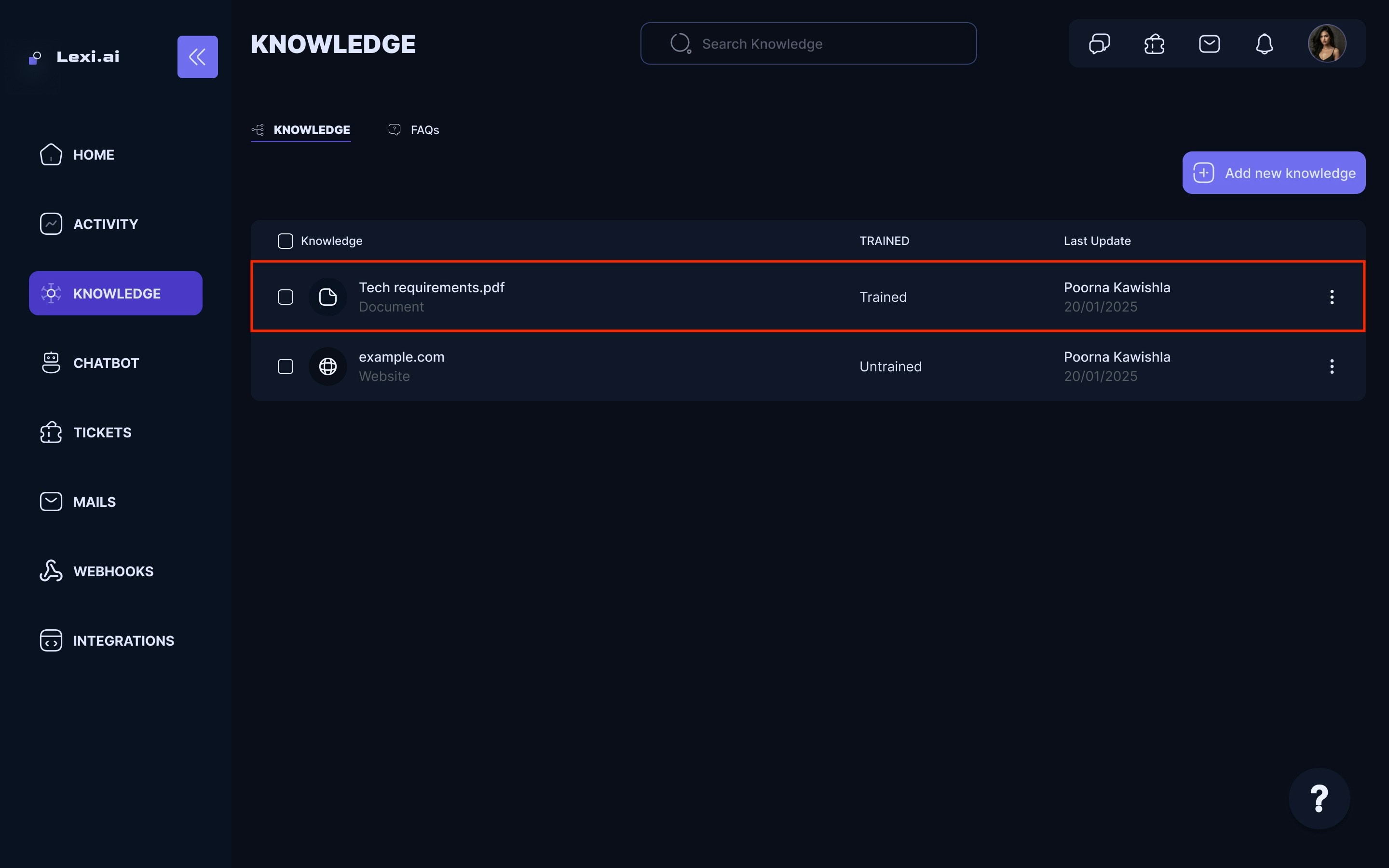 * Once you have added the document or website , go to the left side of the screen and train the AI Model.
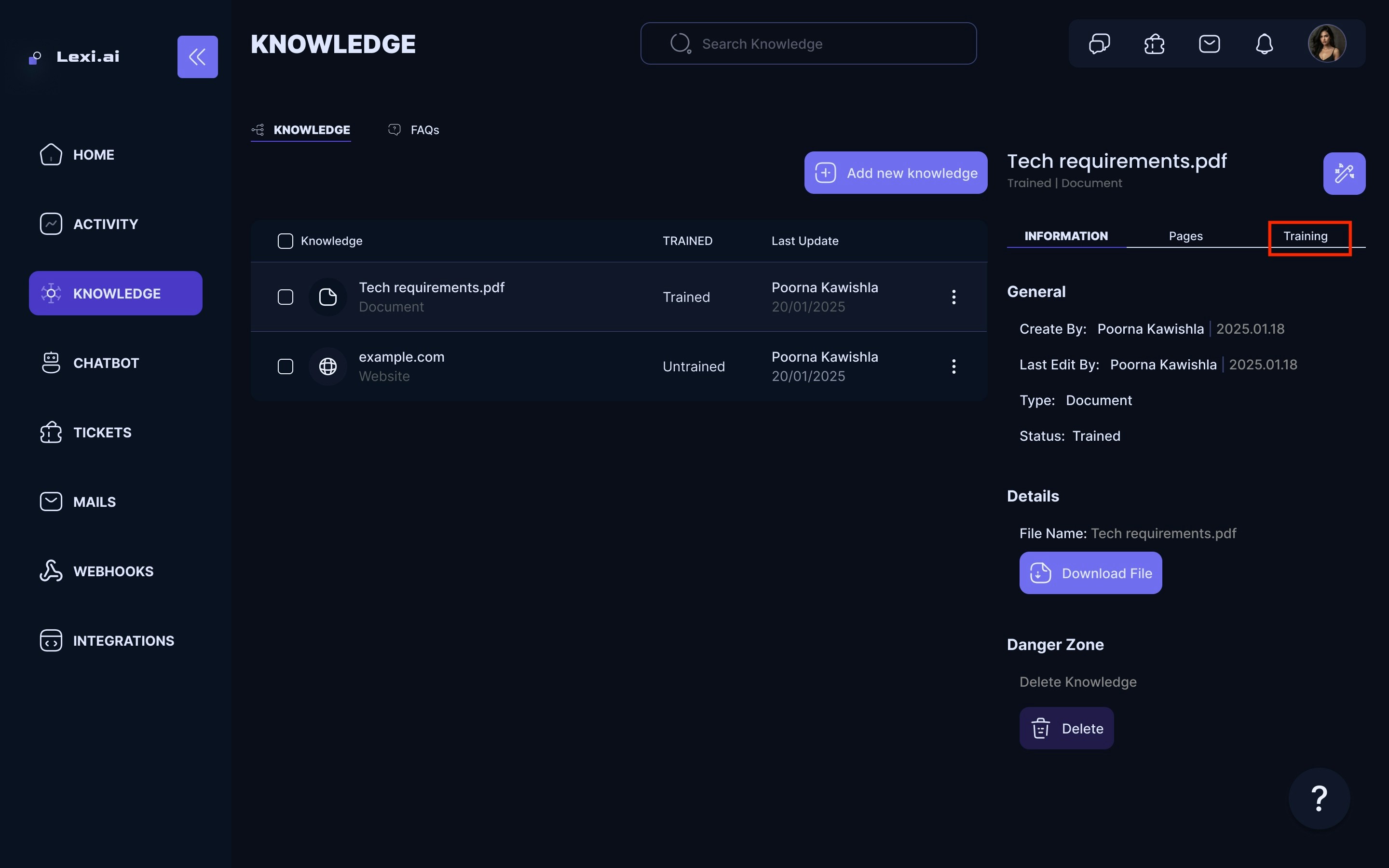 * Click on the **Train** button to train the AI model with the new knowledge. This will take a few minutes, depending on the size of the document or website.
 ## Adding FAQs
People usually come up with frequently asked questions, so why not add FAQs directly on your chatbot beforehand?
An FAQ is a special kind of knowledge.
It is a collection of questions and answers and it is the most "direct" form of knowledge that you can provide to the AI. When an FAQ is find as a potential answer to a user's question, this knowledge is prioritized over other sources.
Let's see how you can add FAQs to your chatbot:
* On your LEXI Home screen, Navigate to **FAQs** under the **Knowledge Base** section.
## Adding FAQs
People usually come up with frequently asked questions, so why not add FAQs directly on your chatbot beforehand?
An FAQ is a special kind of knowledge.
It is a collection of questions and answers and it is the most "direct" form of knowledge that you can provide to the AI. When an FAQ is find as a potential answer to a user's question, this knowledge is prioritized over other sources.
Let's see how you can add FAQs to your chatbot:
* On your LEXI Home screen, Navigate to **FAQs** under the **Knowledge Base** section.
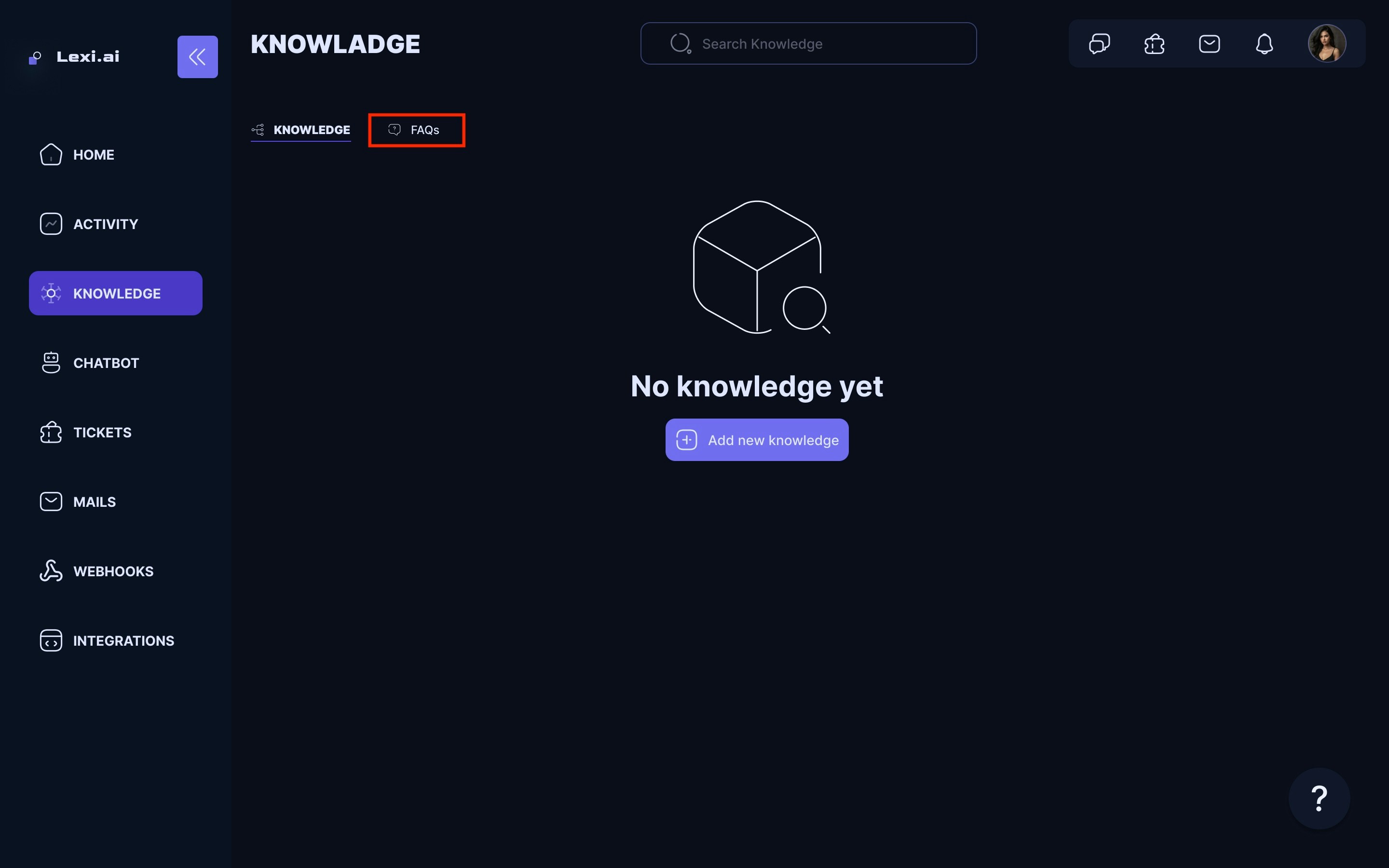 * Click on Create a new FAQ
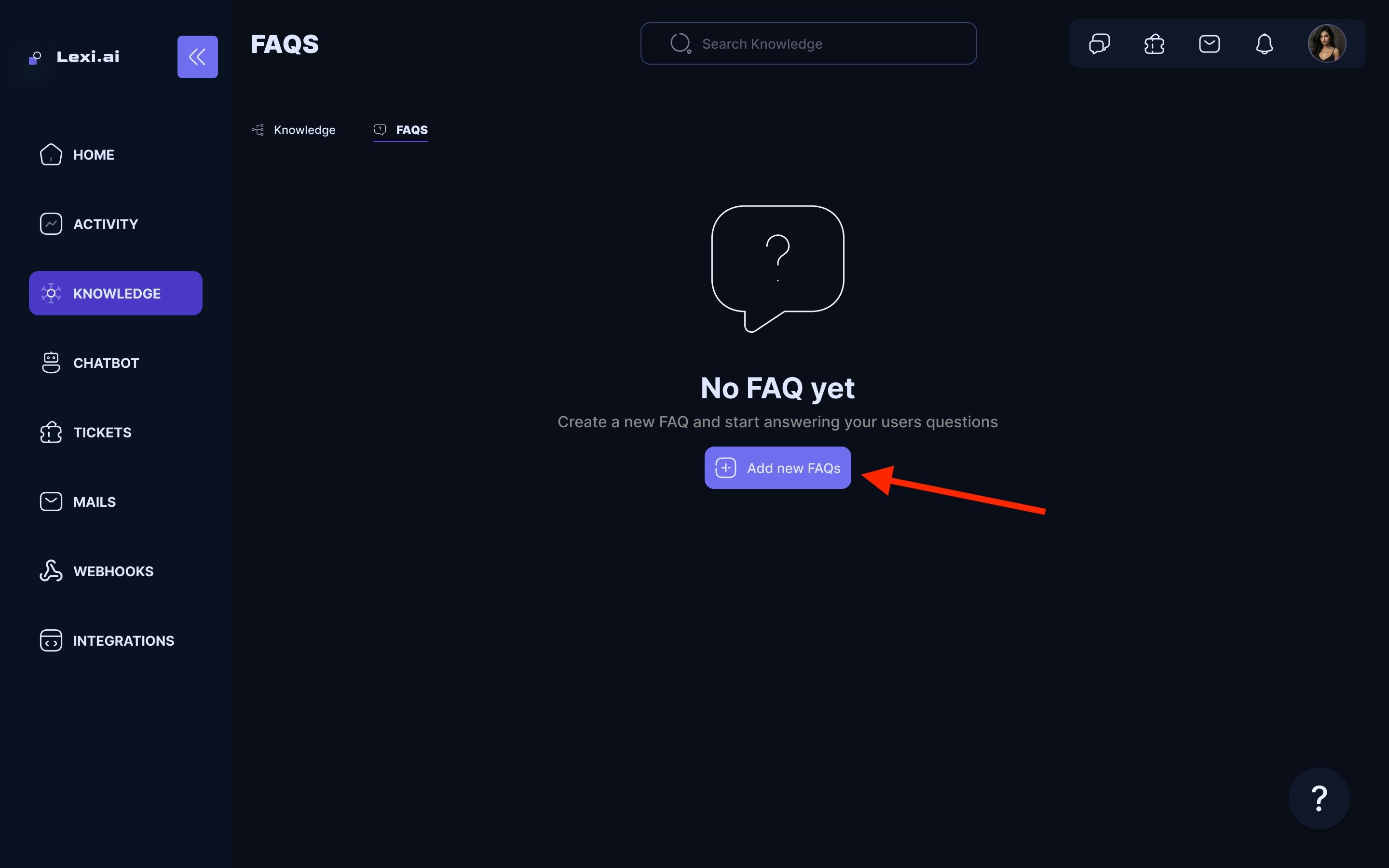 * You can create the category name based on your needs.
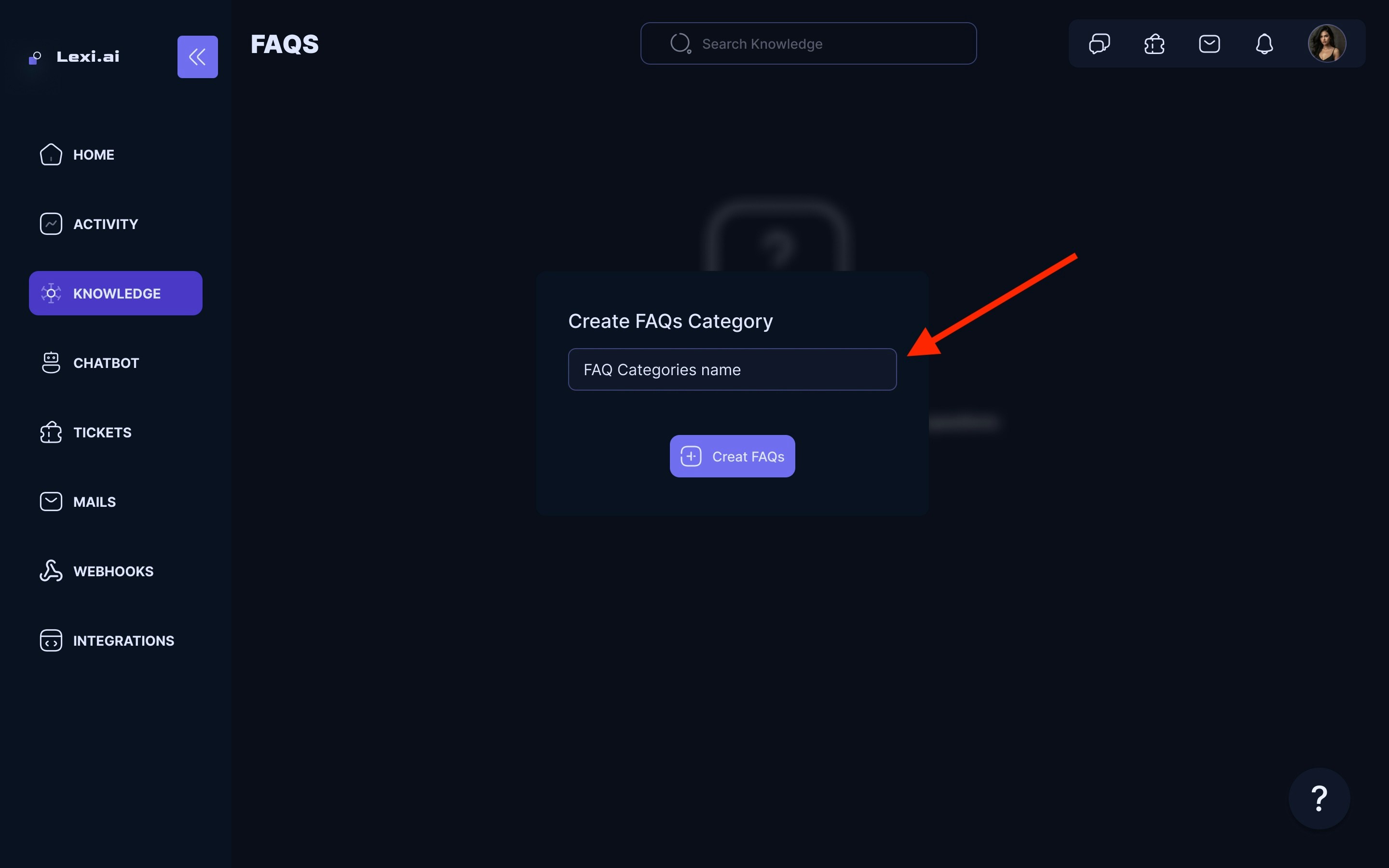 * Example of FAQs category name:
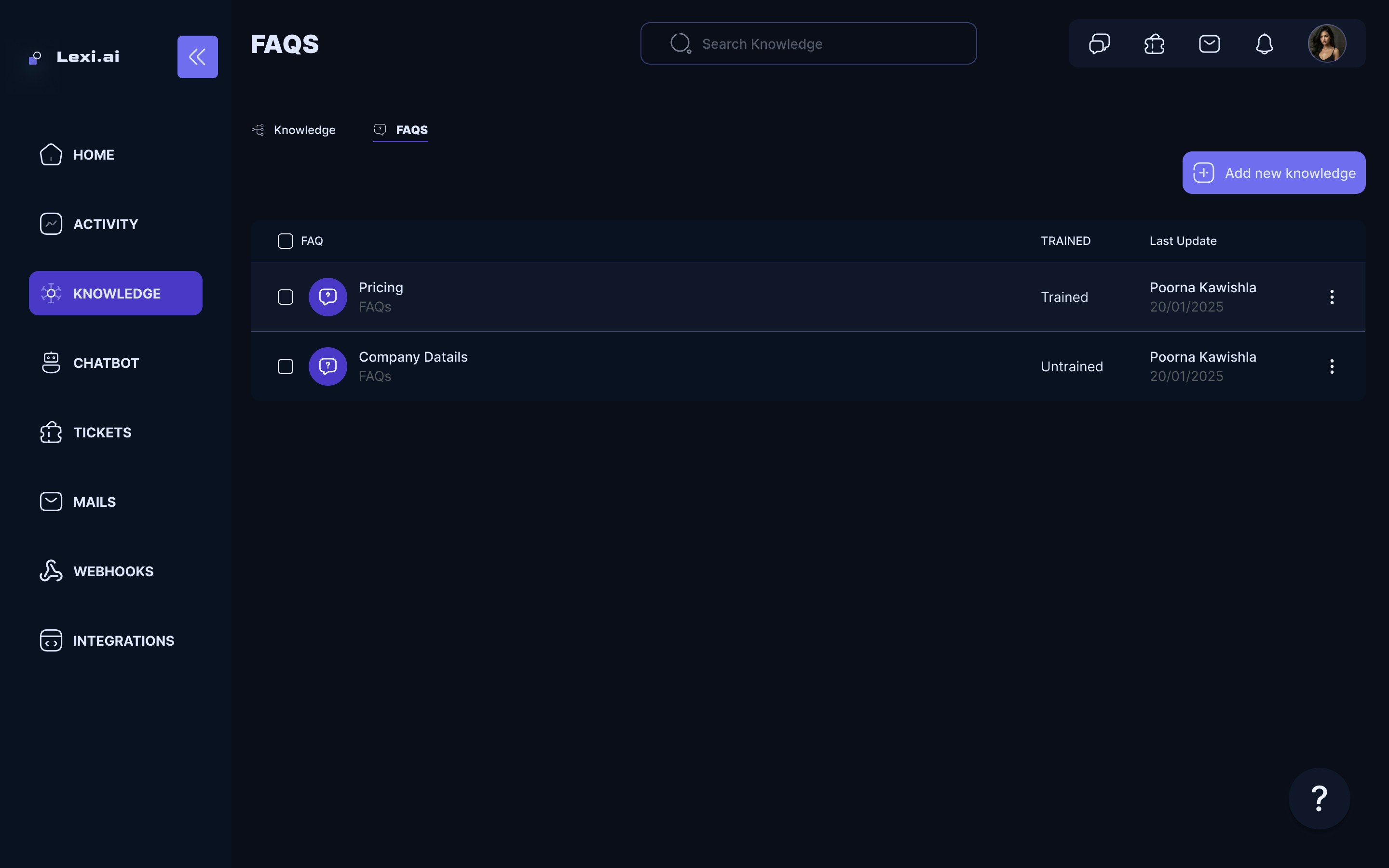 * Once you have added all your Q\&As, training the chatbot is time.
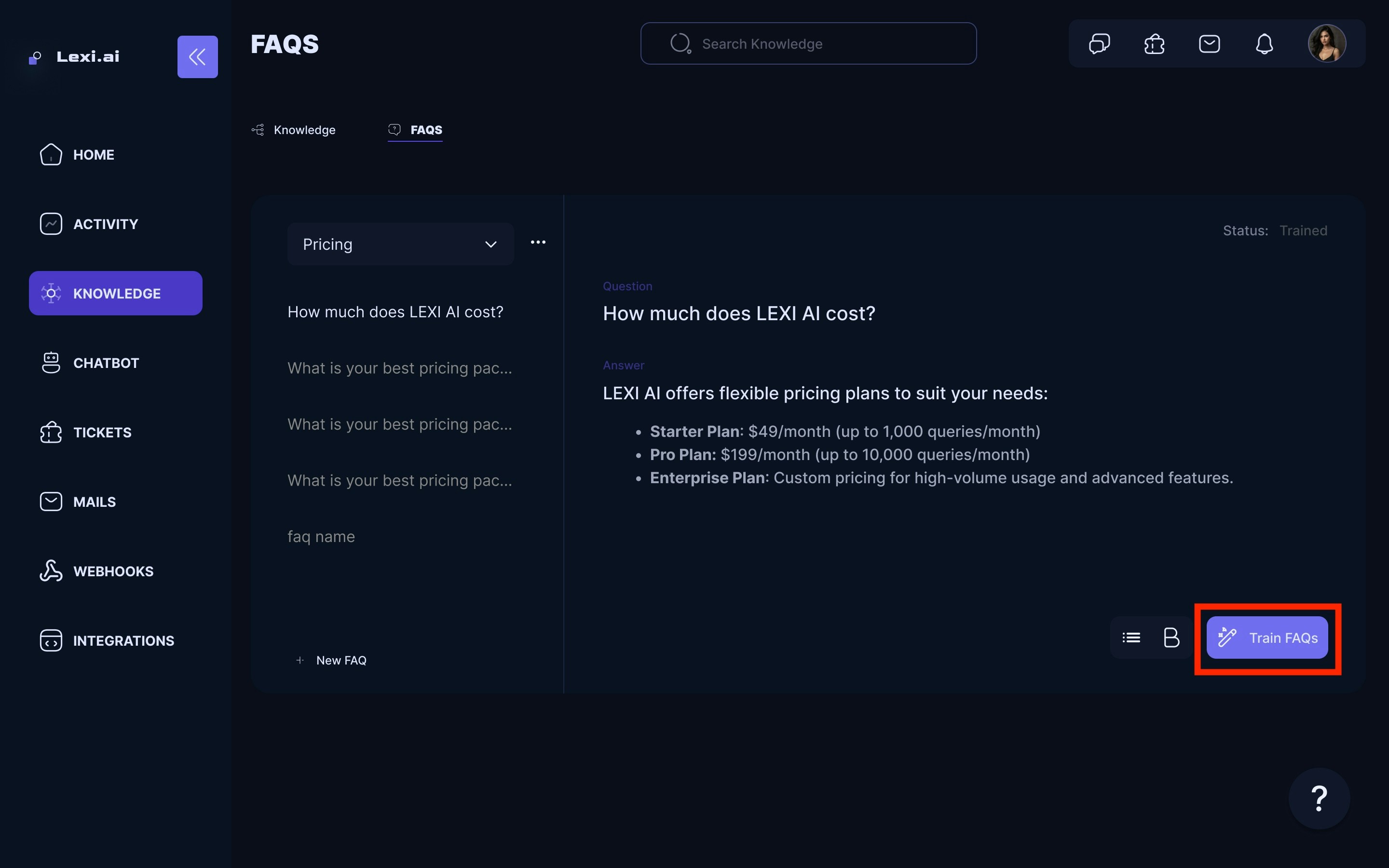
* Return to the FAQ page and click Train AI model to train the chatbot under the Training tab.
* Once you have added all your Q\&As, training the chatbot is time.
* Return to the FAQ page and click Train AI model to train the chatbot under the Training tab.
 That's it! You have now successfully added and trained your knowledge sources and FAQs 🥳